Pick the right tool for your file
Your first decision is whether you are editing a still image or a video. AI watermark removal tools generally specialize in one format, and the underlying technology differs significantly between the two.
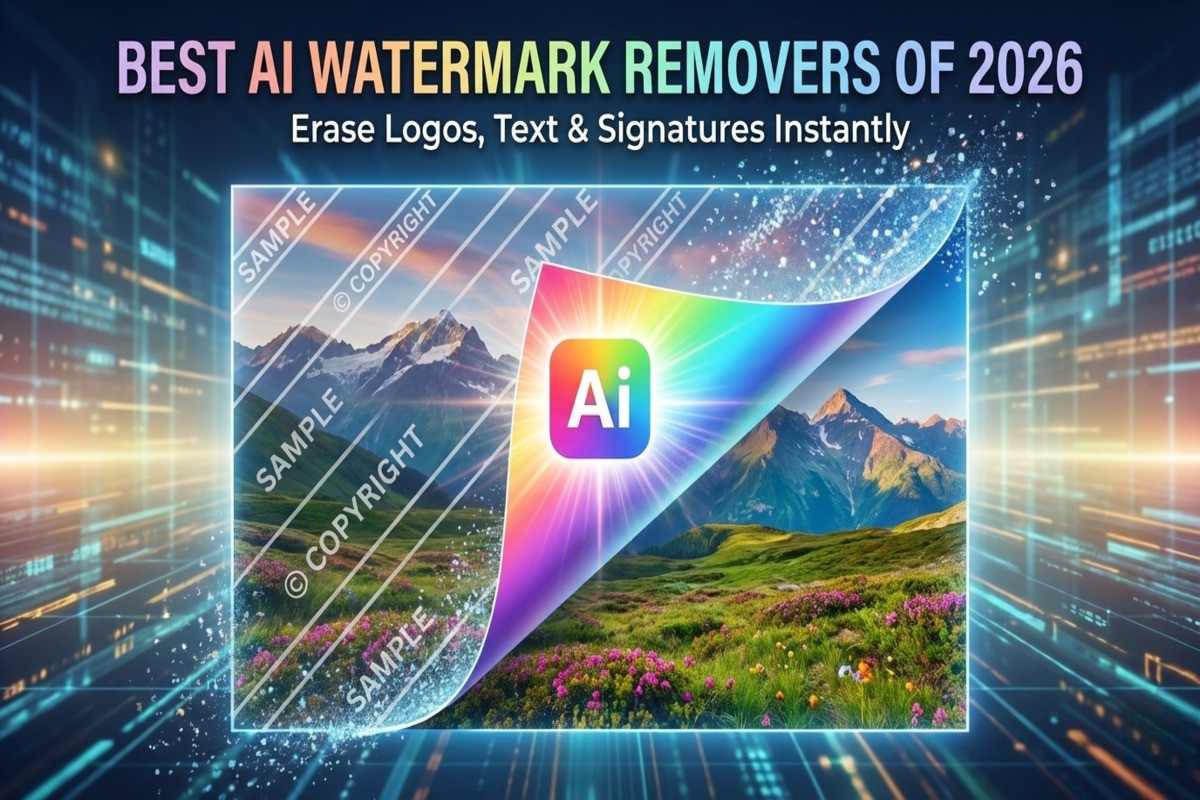
For still images, modern AI models analyze the surrounding pixels to reconstruct texture, color, and lighting. In 2026, these tools go beyond simple blurring. They identify the watermark as an overlay and generate new content that matches the background's grain and depth. This is essential for complex textures like hair, fur, or detailed landscapes where older cloning tools left obvious smudges. If you need to remove a logo from a photograph for commercial use, an image-specific AI tool is your best starting point.
Video watermark removal is more demanding. A video is essentially hundreds of images per second, and the tool must maintain consistency across frames. If the camera moves or the lighting changes, the AI must track the watermark's position and adjust the reconstruction in real-time. Specialized video removers often use temporal analysis to ensure the removed area doesn't flicker or shift unexpectedly. For short clips or social media edits, these tools are powerful but computationally heavier than image editors.
| Format | Best For | Limitations |
|---|---|---|
| Image AI | Complex textures, high-res photos | Single frame only |
| Video AI | Motion, temporal consistency | Slower processing, higher cost |
| Clone Stamp | Simple backgrounds | Fails on complex patterns |
| Blur Tool | Quick fixes | Leaves visible artifacts |
When choosing, prioritize the tool that matches your primary asset. Using an image tool on a video will not work, and using a video tool on a single photo is often overkill and inefficient. Check the tool's supported file types before uploading. Most premium services offer a free trial with limited credits, allowing you to test the reconstruction quality on a sample of your content.


As an Amazon Associate, we may earn from qualifying purchases.
Upload and select the watermark area
Start by uploading your image to the AI watermark remover. Most platforms accept standard formats like JPG or PNG. Look for a prominent "Upload" or "Select Image" button, usually centered on the screen. Once the file loads, the editor opens, giving you access to the tools needed to define the removal zone.
Use the brush or mask tool
The next step is to highlight exactly where the watermark sits. Use the brush tool to paint over the text, logo, or overlay. Think of this like highlighting text in a document; you want to cover the unwanted element completely but avoid painting over the important parts of the photo. If the tool offers a "lasso" or "polygon" selection, use it for straight edges or geometric logos. For soft, irregular text, a brush with adjustable opacity works best.
Refine the selection edges
AI tools are sensitive to precision. If your brush stroke is too wide, the AI might try to "remove" part of the subject, creating blurry artifacts. Zoom in on the watermark area to tighten the selection. Many editors include an "eraser" mode or a negative brush to remove accidental highlights. Take a moment to ensure the red mask covers only the watermark and nothing else. A clean selection leads to a faster, more accurate removal.
Preview before processing
Before hitting the final "Remove" or "Generate" button, use the preview feature if available. This lets you check if the AI has correctly identified the background texture behind the watermark. If the preview looks distorted, adjust the brush size and try again. Accuracy at this stage prevents the need for manual retouching later.
Run the AI reconstruction process
With your selection locked in, the tool begins the heavy lifting. This stage is where the AI reconstruction process fills the gap left by the watermark. The software analyzes the pixels surrounding the target area, identifying patterns in lighting, texture, and color to generate new content that matches the original image.
In 2026, this inpainting process is significantly more sophisticated than previous generations. Modern models do not simply blur or clone nearby pixels; they understand context. If you are removing a logo from a blue sky, the AI generates a natural gradient. If it is on a brick wall, it reconstructs the mortar and texture line by line. This contextual awareness prevents the "smudged" look common in older tools.
Processing time depends on the image resolution and the complexity of the background. Simple backgrounds finish in seconds, while detailed scenes with intricate patterns may take a minute or two. The tool is working to ensure the reconstructed area is indistinguishable from the rest of the photo.
Once the process finishes, the watermark is gone, replaced by AI-generated content that blends seamlessly with the original image. You can then proceed to review the result and make any necessary manual adjustments.
Check for texture artifacts
Once the removal tool has finished processing, do not assume the job is done just because the watermark is gone. The most common failure mode in AI watermark removal is that the tool smudges the surrounding pixels to fill the gap, leaving behind a blurry or plastic-looking patch that only becomes visible when you look closely. To verify the result, you need to inspect the image at a higher magnification.
Open your image editor and zoom in to 200% on the area where the watermark used to be. At this level, you are looking for three specific types of texture artifacts:
Blurring or Smudging: If the details in the background (like skin pores, fabric weave, or brick texture) look melted or out of focus compared to the rest of the image, the AI failed to reconstruct the original pattern. It simply averaged the surrounding colors, which creates a soft, unnatural haze.
Pattern Mismatches: Look for repeating elements that don't align. For example, if you removed a watermark from a tiled floor or a chain-link fence, the lines should continue seamlessly. If you see a break, a sudden shift in perspective, or a "ghost" of the original grid, the removal was incomplete.
Color Banding: Check for sudden jumps in color or lighting. A poor removal might leave a faint ring of discoloration around the edges of the removed text, especially if the watermark was dark and the background was light.
If you spot any of these issues, you will need to go back and use a "healing" or "inpainting" tool to manually fix the specific patch. Most professional editors recommend checking the image at 200% zoom because that is where the human eye can distinguish between natural digital noise and AI-generated artifacts. Tools that claim to "rebuild texture" often only look good at 100% zoom, which is why this step is non-negotiable for a clean result.

Export and save the clean file

After removing the watermark, prioritize PNG if your workflow supports it. PNG uses lossless compression, meaning it preserves every pixel detail without introducing the blurry artifacts common in JPEGs. This is the safest option for maintaining the integrity of your AI-generated image, ensuring the cleaned areas look as sharp as the original generation.
If file size is a constraint, such as for social media or email, export as JPG. However, avoid saving the file multiple times. Each time you open and re-save a JPG, it accumulates compression artifacts, degrading the image quality. Save it once at the highest quality setting (usually 90-100%) and share that single file.

Zoom in to 100% or 200% to inspect the areas where the watermark was removed. Look for smudging, color mismatches, or residual ghosting. If you spot imperfections, go back to the editing phase. Once satisfied, save the final version to your designated folder.
-
Export as PNG for maximum quality
-
Or save as high-quality JPG for web use
-
Inspect for residual artifacts at 100% zoom
-
Save final file to your project folder
Common questions about watermark removal
Users frequently ask whether removing watermarks from AI-generated images is legal or if it degrades the final output. The short answer depends on how you use the tool and which source files you start with. Most modern AI watermark removers in 2026 use inpainting models that reconstruct missing pixels rather than simply blurring them, which means quality loss is minimal when used correctly.
Is removing watermarks from AI images legal?
Legality hinges on copyright status and permission. If the AI-generated image is protected by copyright and you do not own the rights, removing a watermark to claim authorship or bypass licensing is illegal in most jurisdictions. However, if you created the image yourself and the watermark is a platform artifact (like a "generated by" tag), removing it is generally acceptable for personal use. Always check the terms of service for the specific AI tool you used.
Will removing a watermark reduce image quality?
High-quality AI tools use generative fill technology to replace the watermark with context-aware background data. This means the removed area is regenerated to match the surrounding texture, lighting, and patterns. While older tools left blurry patches, 2026 models typically restore detail with 90%+ accuracy, making the removal nearly undetectable to the naked eye. The key is using a tool trained on high-resolution datasets.
Are AI watermark removers reliable?
Reliability varies by tool complexity. Simple tools may struggle with complex backgrounds or text-heavy watermarks, leaving artifacts. Advanced AI-powered tools dominate the market in 2026, offering precision that handles intricate designs. For best results, choose tools that allow manual refinement brushes to fix small errors after the initial automated removal.
No comments yet. Be the first to share your thoughts!